
Settings - Configuration
General settings
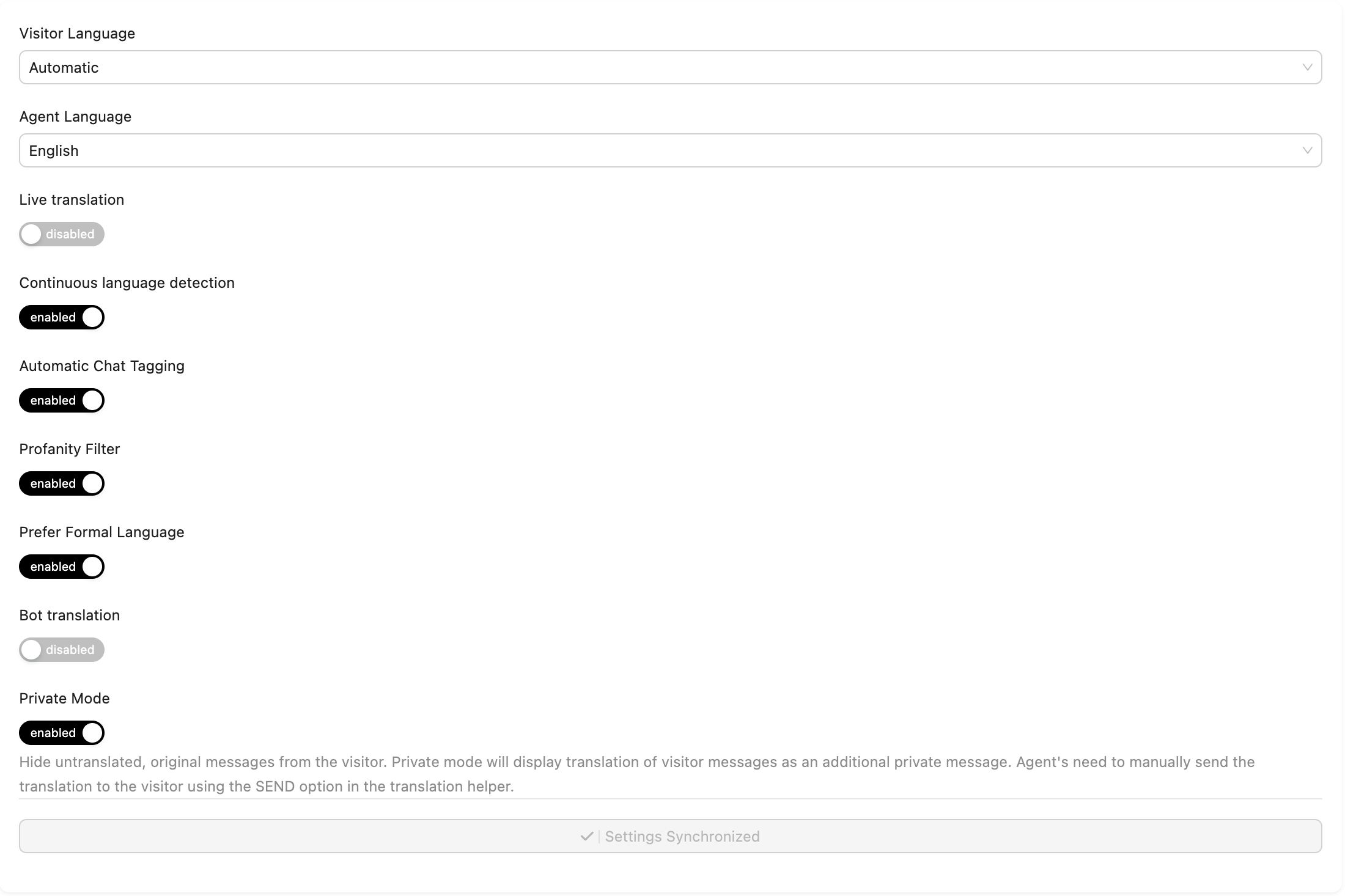
- Live translation of chats can be enabled and disabled by changing the Enable translation switch. You can set the general rule that the integration will follow for every chat if there is no specific setup for a group or agent.
When you turn Enable translation on or off, keep in mind that this setting changes the settings of all chats not affected by group or agent mappings. When you change the setting to disabled, all created and current chats will have translation disabled, unless an agent turns the translation manually for one of their chats, or you set a mapping for a group or agent.
The chosen Visitor Language and Agent Languages will apply to all your LiveChat chats. The Visitor Language can be also set to be Automatic. Once it is set the AI will recognize automatically what the visitor language is and translate it. Agent can speak different languages and the translator will adapt to the visitor's language. If translation happens automatically, the visitor's messages are translated to the first agent's language.
-
Continuous Language Detection - Warning: Continuous language detection results with increased characters usage for the repeated language detection. - By default, the visitor's language is detected only at the beggining of the chat, and then it is remembered. You can enable Continuous Language Detection to detect the visitor's language every time they send a message. It is a feature dedicated to chats with visitors who dynamically change their language during the chat.
-
Automatic chat tagging when enabled, each completed chat will be marked with a recgonized language tag. This way you can filter your LiveChat archives and reports by language.
-
Profanity Filter allows you to mask words that are generally considered obscene. Please note that this feature may not be fully supported for all the languages.
-
Prefer formal language if enabled, is used in all sentences in the translated text, using language structures associated with formal and polite communication. For example, the translated text uses the formal form of second-person pronouns and their verb agreement (unfortunately, this does not work in every language).
Formal language mode supports the following languages:
| Language | Language code |
|---|---|
| Dutch | nl |
| French | fr |
| French (Canada) | fr-CA |
| German | de |
| Hindi | hi |
| Italian | it |
| Japanese | ja |
| Korean | ko |
| Portuguese (Portugal) | pt-PT |
| Spanish | es |
| Spanish (Mexico) | es-MX |
-
The Bot translation option allows bots to use our translator. All the text messages sent by bots are automatically translated. By default, this feature is disabled.
-
Private mode hides untranslated, original messages from the visitor. Private mode will display translation of visitor messages as an additional private message. Agent's need to manually send the translation to the visitor using the SEND option in the translation helper.
Please remember to click Save at the bottom of the settings after applying any changes.
Groups settings
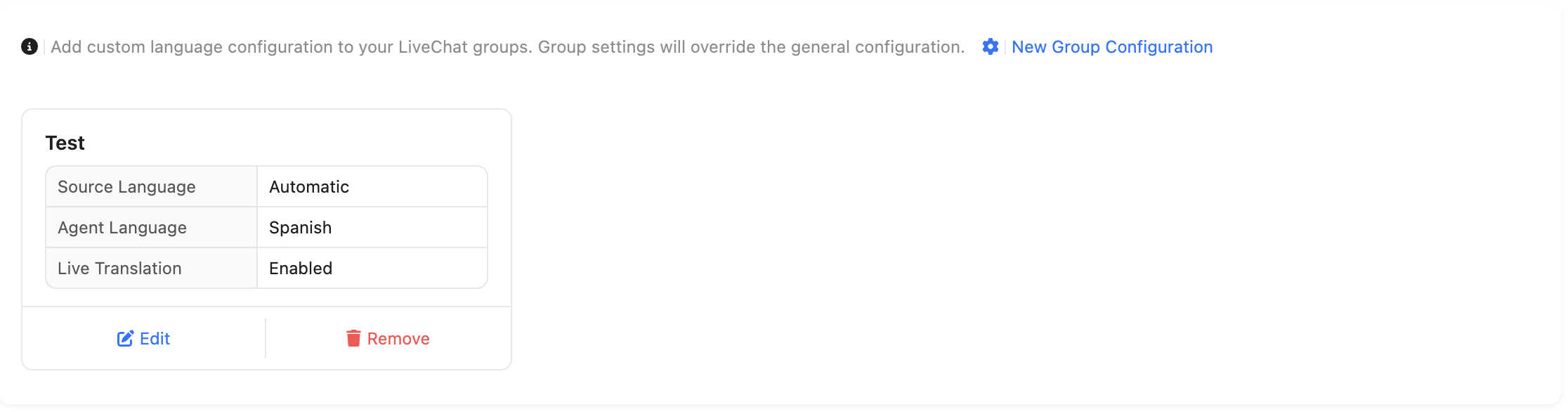
By choosing Groups you can set different translation settings for different groups by clicking Add setup on the right. After adding the mapping, you can select the group name, expected Agent languages, and Visitor language. If a group has its own language mapping set, the general rules do not apply to it. If the translation is turned OFF or ON in the general settings, it will not be applied to the group. If you have general translation enabled, but in a group mapping you have it turned OFF, the chats taking place in that group will not be translated.
The same priority applies to the other settings like Continuous Language Detection, Private mode, Bot Translation, Profanity Filter etc. - The Group settings override the general settings if a chat takes place in a set group.
Agents settings
By selecting the Agents tab, you can set different translation settings for different agents. After adding the mapping, you can select the agent name, the expected Agent Languages, and Visitor Language.
Agent settings override the general and group settings if the set agent is assigned to the chat.
In the mapping settings you can choose certain Agent mapping to apply only in specific groups.
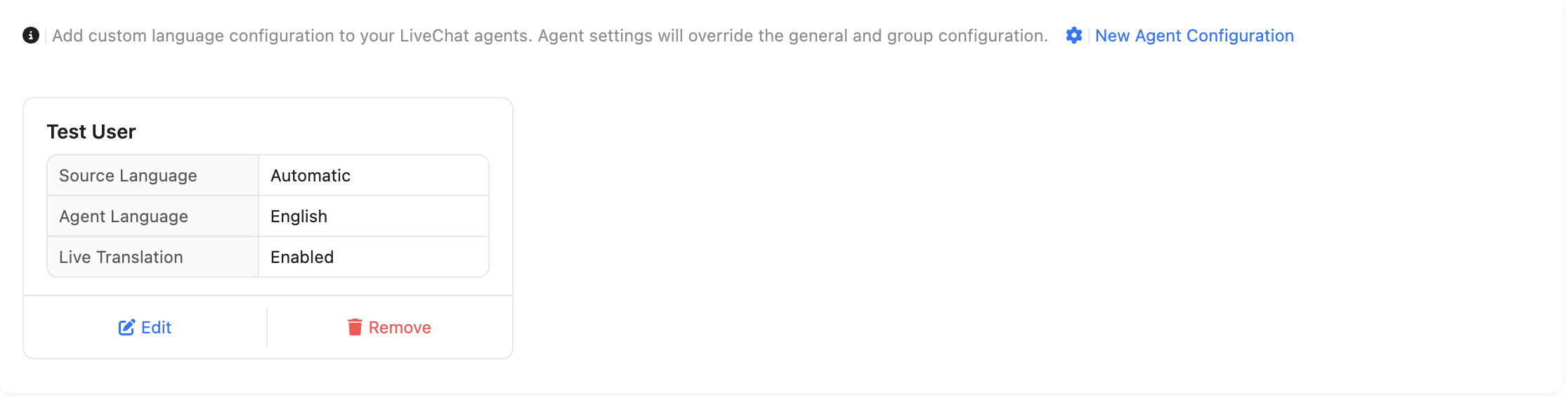
Each mapping can be deleted by clicking Remove button or edited by clicking Edit button.