
Authorization
The authorization of your Salesforce account can be completed in just a few clicks. When you select Add Salesforce Account or Add Sandbox Account in the integration settings, a pop-up window will appear prompting you to enter your Salesforce credentials.
If your account does not have the required permissions, you may encounter a generic error message such as:
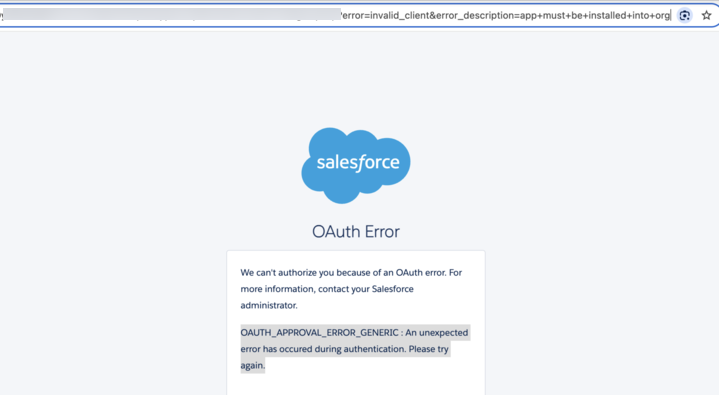
The URL of the pop-up window may end with one of the following strings:
- &error_description=app+must+be+installed+into+org
- &error_description=this+app+is+blocked+by+admin
These messages indicate that your account lacks the necessary permissions to authorize the integration connection.
Resolving Permission Issues
The details of the app authorization permissions issue are also described in the dedicated Salesforce documentation.
The Salesforce documentation provides detailed information about app authorization permissions, but here’s a summary of what to check:
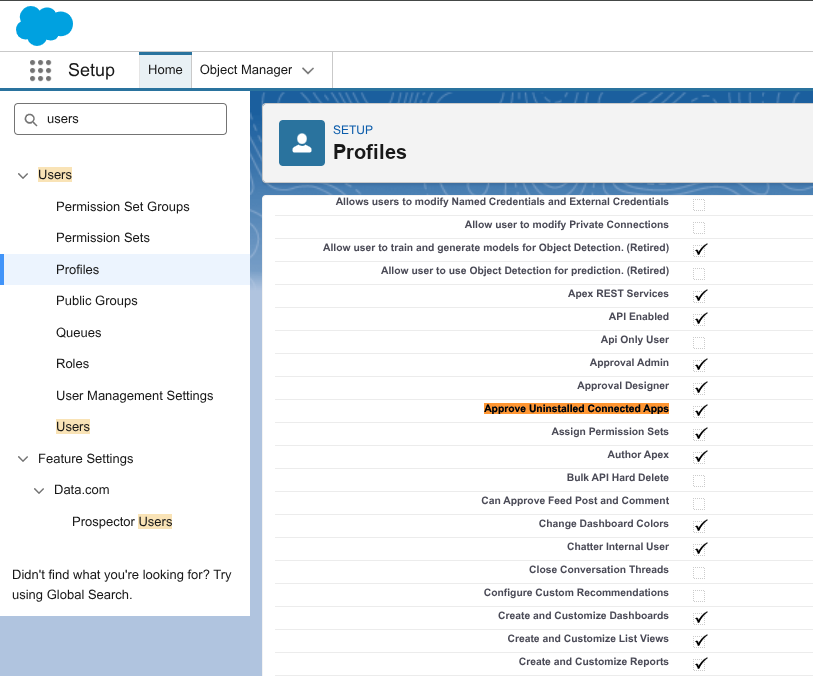
- Log in to your Salesforce account and go to Setup.
- In the Quick Find search bar, type and select Profiles.
- Locate the profile assigned to your account and ensure it includes the following Administrative Permissions:
- Approve Uninstalled Connected Apps
- API Enabled
- Enable these permissions if they are not already active.
- Save your changes, perform a hard refresh of your LiveChat application window, and try connecting again.
We would love to hear out your feature requests!
Contact us at support@darka.io.